Cómo bloquear un número en iPhone (2026) y la forma más rápida de frenar el spam
El iPhone puede bloquear un número, pero tienes que hacerlo a mano. Abre Teléfono, toca Recientes, busca la llamada, pulsa la (i) pequeña que hay al lado, baja del todo, toca “Bloquear este contacto” y confirma. Y si el número no está ya en Recientes o en Contactos, no hay forma nativa de bloquearlo.
Ahí está el problema. La lista de bloqueo nativa solo sirve para números que ya has recibido, y los añades de uno en uno. Las tramas de spam rotan miles de números, así que el que bloqueas hoy no sirve de nada mañana, y la siguiente llamada desconocida entra igual.
iOS también ofrece “Silenciar desconocidos” (Ajustes › Teléfono), pero es un martillo: manda al buzón cualquier número que no esté en tus contactos. Eso silencia al repartidor, a la clínica que te devuelve la llamada o a cualquier contacto nuevo, junto con los spammers.
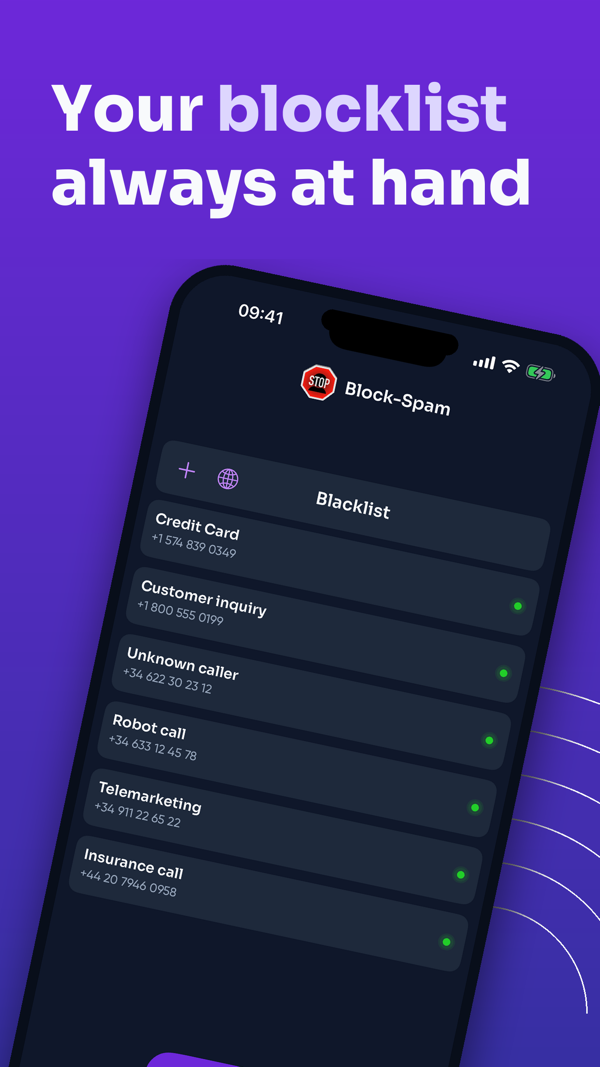
Block-Spam te quita el trabajo manual. Mantiene una base de datos de números de spam actualizada por la comunidad y los bloquea o etiqueta a través de CallKit de iOS antes de que suene el teléfono. Sin tarea número a número y sin perder llamadas reales: la lista se actualiza sola en segundo plano.
Tú sigues mandando: añade tus propios números, bloquea prefijos enteros con comodines y filtra también los SMS de spam. Y es privado por diseño: todo funciona en tu dispositivo y tus contactos nunca salen del teléfono. Bloquear spam en el iPhone no debería ser un trabajo manual, y con Block-Spam no lo es.
Protégete hoy
Descarga Block-Spam y bloquea llamadas spam con protección IA — gratis para iOS y Android.